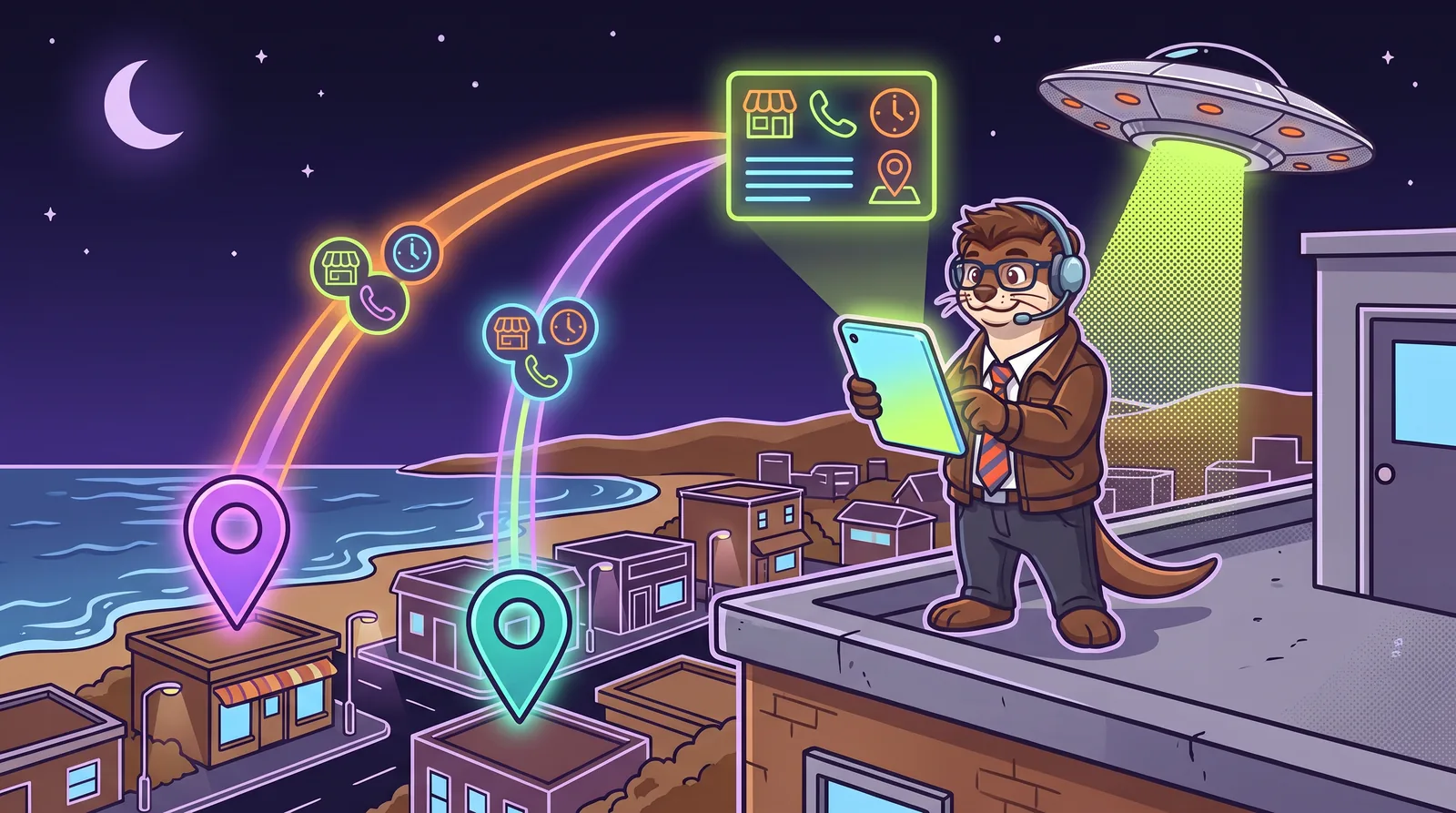

Most owners set up Google and stop there. But Bing has its own search engine, maps and business listings, and Microsoft’s Copilot is built on the same foundation as Bing search. Bing Places for Business is free, and it can copy your Google Business Profile.
What Bing Places is
Bing Places for Business, at bingplaces.com, is Microsoft’s free tool for claiming or adding your business listing: the one that shows in Bing search results and on Bing Maps. Bing builds each listing from many sources, and Bing Places is one of its main ones. Claiming yours lets you control what it says, and Bing says verifying it protects it from unauthorized changes.
Why it matters more now
What’s changed is where Bing’s data goes. Microsoft says Bing search and Copilot rely on the same crawling, indexing and ranking foundation. OpenAI’s help page says ChatGPT search sometimes sends searches to partner search providers, and Microsoft is one it names.
Neither company spells out exactly where its AI gets the details for a business listing, so don’t expect Bing Places to switch anything on by itself. Think of it as free insurance: one more trusted place with your correct name, phone, hours and service area. More on the AI side in how to get recommended by ChatGPT, and ChatGPT now has its own listing you can claim: ChatGPT business profile: how to claim and set it up.
Storefront or service area? Decide first
Like Google, Bing can show your street address or keep it private and show the area you serve instead. Decide which before you import or create anything, because a listing that shows your address shows it to everyone on Bing and Bing Maps.
- Storefront (customers come to you): show your address. You get a pin on Bing Maps and people can find you.
- Service business run from home (you go to customers): hide your address and list your service areas. Your home stays private, but you need to add the towns you cover.
If you go to your customers, you don’t have to show your home address on Bing. Bing still needs the full address to verify you, but it keeps it from the public and shows your city and service areas instead.
To hide your address on Bing:
- Edit your listing and enter your complete, correct address. Bing needs a full address and a category before it will let you hide it.
- Turn on the option to hide your address. Bing only allows it once you’ve added service areas.
- Add your service areas: cities, regions or ZIP codes, up to 20 of them.
- Don’t use a PO box. Bing doesn’t accept one as a business address.
- If your listing is linked to Google, make the change in Google and let it sync. Then look at your live Bing listing to make sure the street address isn’t showing.
Use the same towns you list on Google. There’s more on choosing them in showing up in more than one Grand Strand town.
The quick way: import from Google
If you already have a verified Google Business Profile, Bing can copy it and keep the two in sync. First, search Bing for your business name to see if a listing already exists. Bing warns that importing can create duplicates.
- 1Sign in to Bing PlacesYou can use a Microsoft, Google or Facebook account, or a work account. Your listings belong to whichever account you sign in with, so use one the business controls.
- 2Choose Import from your Google Business ProfilePick how often Bing should sync with Google: weekly, biweekly or monthly.
- 3Sign in to Google and importBing finds the eligible listings on that Google account and imports them. You can’t hand-pick which ones.
- 4Wait for it to publishIf Google already verified your business, Bing verifies the import automatically. Bing says publishing typically takes one to two weeks, and the listing may say Pending Publish until then.
Setting it up by hand
No Google profile, or rather keep the two separate? You can claim or create the listing yourself.
- 1Search for your businessSign in, choose your country, and search your business name and location. If a listing exists, claim it. If not, choose Create a new business.
- 2Fill in the basicsName, address, phone, website, hours and category. You get one primary category and up to nine more. You can add up to 100 photos, and restaurants can add a menu link.
- 3Verify with a PINBing sends a PIN by phone, text, email or postcard, though not every option is offered to everyone. A postcard typically takes about a week to arrive in the US, and Bing suggests waiting 12 days before contacting support.
- 4Then leave it alone for a bitBing says publishing typically takes one to two weeks in North America, and every edit made while it’s pending pushes the publish date back.
Use your real business name. Bing says it doesn’t accept SEO tricks like adding keywords to a business name, the same rule Google has.
Keep it matching
Bing checks the details you submit against what it finds on other websites and social media, and a change that doesn’t match may not publish. So keep your name, address, phone and hours the same everywhere.
- Bing ranks local results on relevance, distance and popularity. It says your website’s SEO plays a role, and that reviews and mentions across the web count toward popularity.
- Moved? Bing says not to edit the old listing. Create a new one with the new address and mark the old one closed.
- Look in now and then. Bing may favor other sources if your Bing Places details go more than six months without an update.
- While you’re there, add your website to Bing Webmaster Tools. It’s free, and its AI Performance report shows when Copilot cites your pages.
For the bigger picture of what helps a local business get found, see local SEO in Myrtle Beach: what really helps.
Accurate as of November 2026. The companies and services named in this guide change their tools and rules often, so check their own help pages before acting on anything here. This is general information, not legal or professional advice, and Widget Weasel isn’t affiliated with or endorsed by any company it mentions.